
Seat Leon >> Radio mode
Introduction
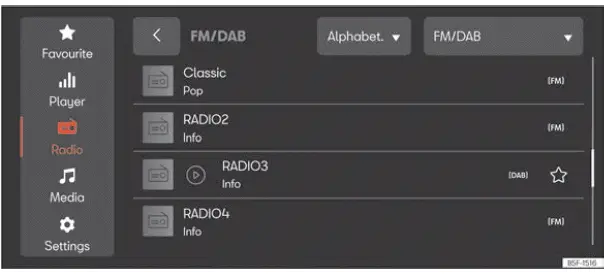
Fig. 173 Schematic representation: Radio view.
In Radio mode, you can tune into available radio broadcasts across different frequency bands and save your favorite stations onto preset buttons for quick and convenient access while driving your Seat Leon.
The reception technologies and frequency bands available depend strictly on vehicle equipment specifications and regional market rules. In certain countries, specific frequency bands may cease broadcasting or become completely unavailable.
Access the RADIO menu
- Press MENU >
 >
 ››› Fig. 173.
Access the settings
- Press MENU >
 >
 .
Online functions in Radio mode
Online functions within Radio mode are accessible only when the following conditions are met:
- Your vehicle is equipped with SEAT CONNECT hardware.
- You possess an active, registered SEAT CONNECT user account.
- The vehicle is successfully linked to your user account profile.
- You have an active data package purchased from SEAT's official data supplier webshop, or you are sharing an active mobile data connection from your smartphone via the car's Wi-Fi hotspot.
Note
- Individual broadcasting stations remain fully responsible for the content and metadata of the information they transmit. Connecting auxiliary electronic equipment to your Seat Leon can sometimes cause electromagnetic interference in radio reception and introduce audio noise in the loudspeakers.
- Metallic window tinting films or reflective stickers attached to the glass panes can degrade signal reception on vehicles equipped with window-integrated aerials.
Radio equipment and symbols
The available functions, tuner types, and frequency bands vary depending on your Seat Leon's equipment level and regional market specification.
- AM radio tuner.
- Dual FM receiver featuring antenna diversity technology.
- Consolidated single FM station list.
- Seamless merging of DAB digital stations and FM analog stations into a unified list.
- Consolidation of all favorite stations saved across preset buttons into a single overview list supporting a maximum of 36 favourite stations.
- Broadcasting station logos.
- DAB visual presentations (slideshows) featuring sequential images transmitted with the audio.
- Internet Radio: access to over 10,000 live stations and podcasts from around the world, included via SEAT CONNECT.
Universal symbols in Radio mode
AM To select the desired AM frequency band.
FM/DAB To select your preferred FM or DAB digital frequency band.
Internet radio To select Internet radio streaming reception.
TP Displayed next to station names to indicate active traffic program monitoring.
Symbols on the FM/DAB frequency band
 To display the frequency band for manual selection of an FM frequency. Only the FM band should be selected within this radio context.
 DAB digital broadcast is currently unavailable.
 DAB radio stations supporting visual slideshow presentations.
Symbols on the AM frequency band
 Manually updating the AM station list.
 To display the frequency band for manual selection of an AM frequency.
Menus in Internet radio mode
 Show station selection menu.
 Open text search input.
 Show the last online radio stations listened to.
 Show the 100 most played radio stations and podcasts.
 Show available online radio podcasts.
 Show online radio stations grouped by country.
 Show online radio stations broadcasting in your desired language.
 Show online radio stations whose programming matches your desired musical genre.
Selecting, tuning and saving a station
Select the frequency band
Before tuning into a specific station, you must first choose a frequency band or a reception source. The list of reachable broadcasts will vary depending on the active band or signal source selected on screen.
The exact frequency bands and reception options available depend on your Seat Leon's equipment package and regional market specifications.
- Select your preferred frequency band or reception type: AM, FM/DAB, FM (for vehicles without digital DAB support), or Internet radio.
Search and select a station
You can browse and select radio stations using several direct methods.
Available selection methods will change depending on the chosen frequency band and reception mode.
Select via the frequency band (AM and FM)
1. Activate the desired frequency band on the touchscreen.
2. Tap and hold the on-screen dial cursor, scroll across the frequency scale, and release it once you reach your target frequency.
OR: tap directly on any point along the frequency scale line. The cursor will instantly hop to that specific frequency location.
The radio tuner will immediately lock onto the selected frequency.
Select from the station list (AM and FM/DAB)
The station list displays all broadcasts that can currently be received. When operating in the AM band, you may need to refresh the station list manually if you have driven outside the geographic area where the list was last generated. In FM/DAB mode, the Seat Leon system continuously updates this station list in the background.
1. Open the station list menu.
2. Tap the station entry you wish to play.
The system tunes to the chosen station. In combined FM/DAB mode, the tuner automatically locks onto whichever signal variant provides the highest audio quality.
Search and filter stations (Internet radio)
While using Internet Radio mode, online broadcasts can be filtered into specific categories or located directly using a keyword text search.
1. Open the online station list.
2. Choose a category filter to narrow down the station catalog.
OR: tap  to open the text search screen. The keyboard entry field will appear.
3. Type in the station name or keyword. The results list populates dynamically as you type each character.
4. Tap your preferred station from the search results.
The internet radio stream will begin playing.
Save stations on the preset keys
You can store up to 36 favorite stations across different frequency bands and reception sources onto quick-access preset buttons.
1. Tune the radio to your desired station.
2. Open the preset buttons display area.
3. Press and hold down your target preset slot until an audible confirmation tone plays and the station is saved.
OR: press and hold a station entry directly within the station list display until the preset slots pop up on screen.
4. Select the target preset button to assign the station.
The selected station is now stored on that preset button for instant recall.
If a station was previously saved to that specific preset slot, it will be replaced by the newly assigned station.
Special functions in Radio mode
Traffic information (TP)
The Traffic Programme (TP) function continuously monitors announcements from compatible radio stations broadcasting traffic information and automatically plays them over your Seat Leon audio system, whether you are listening to standard Radio mode or active multimedia playback. To utilize this feature, the system must be able to tune into a valid station transmitting traffic data.
Certain broadcasting stations that do not feature native traffic reports support the TP function by relaying traffic updates broadcast by partner networks (using Enhanced Other Networks / EON).
When operating in the FM frequency band or during Multimedia playback mode, the system will automatically monitor a background station broadcasting traffic announcements whenever reception allows.
If no station with traffic data can be tuned in, your Seat Leon infotainment system will automatically scan for available stations broadcasting traffic program updates.
Traffic information broadcast services are not supported or available in all regional markets.
Activating and deactivating the TP function
- While in Radio mode or Multimedia mode, press
 > Traffic programme (TP).
Presentations (SlideShow) in DAB
The SlideShow (SLS) function is an advanced feature of digital audio broadcasting (DAB) stations, allowing a visual sequence of images—such as station logos, album artwork, or program graphics—to be displayed on screen for the user.
Activating and deactivating the SLS function
You can easily deactivate the slideshow visual feature on DAB radio stations if preferred:
- Menu
 > Slide Show (switch on/off).
Online radio.
Online radio provides an alternative reception method for internet streaming stations and podcasts independent of traditional AM, FM, and DAB frequencies. Thanks to internet transmission over cellular data, reception is not restricted by local geographic borders.
Online radio streaming is only available through an active internet connection established within your Seat Leon infotainment system.
Using online radio streaming may incur cellular data transmission charges depending on your current mobile data plan.
- While in Online radio mode, access the settings menu and choose either high or low audio streaming quality to optimize playback performance.
Station logos
For many common frequency bands, official station logos are already pre-installed directly inside the infotainment system memory.
If automatic station logo assignment is enabled within your FM/DAB frequency band settings, matching logos will be paired automatically with the corresponding stations.
When operating in Online radio mode, the Seat Leon system accesses an online database of station logos and automatically applies them to the listed internet stations.
Assign station logos manually
1. While in FM/DAB mode, press Station logos on the screen.
2. Tap the  icon and then select the specific station to which you want to assign a logo.
3. Choose the desired station logo from the available options. If desired, repeat this process for other stations.
4. OR: access this feature via the system menu  > Station logos.
Additional DAB warnings
The additional DAB announcements function monitors specialized notifications and emergency alerts broadcast by DAB digital radio stations and plays them automatically when active in Radio mode.
Activate and deactivate additional DAB warnings:
- Menu > Additional DAB announcements (Activate/deactivate).
Radio text
The radio text function displays live text information transmitted by the broadcaster related to the currently playing song, artist, or program on your selected station.
Activate and deactivate Radio text:
- Menu > Radio Text (Activate/deactivate).
 SEAT Assistant
Introduction
Note
The SEAT Assistant voice control function is not available in all regional markets or on all equipment lines.
The intelligent SEAT Assistant in your Seat Leon operates in both onl ...
 Media Mode
Introduction
Fig. 174 Schematic representation: Media view
In Media mode, you can play your favorite multimedia files directly from connected data storage media through your Seat Leon infotainment ...
See also:
Exploded view - door handle and door
lock
Exploded view - door handle and door lock (part I)
- Cable for the outside handle
(back door)
Bowden cable
- Anti-jam protection
1x
Stuck to door panel
- Backing plate ...
