
Seat Leon >> Infotainment system operation and displays
Introduction
The advanced infotainment system in your Seat Leon centralizes vital vehicle functions and electronic systems into a single intuitive control unit, managing climate control settings, audio equipment, navigation routing, and general vehicle configuration.
The exact number of menus available and the precise labeling of various options will vary depending on the specific electronic architecture and equipment package fitted in your vehicle.
General operating information
General operational guidelines for using the infotainment system, along with essential safety and warning instructions that must be strictly observed, can be found in the introductory manual chapters.
How to move through the different menus and select them
- Switch the vehicle ignition on.
- If the central infotainment display is powered off, switch it on manually.
- Different menus can be selected directly on the touchscreen interface using clear text options, graphical icons, or virtual buttons.
When a selection box is checked  , the corresponding function is active.
Pressing the dedicated menu button  will always return you directly to the last menu used.
Any adjustments made within the system configuration menus are saved automatically upon exiting those menus. Scroll bar: Certain menus and lists contain more items than can fit on the screen at one time, such as extensive lists of settings. To view hidden items, touch the scroll bar and drag it smoothly up or down.
Tutorial
The first time you start up and connect the Infotainment system in your Seat Leon, an interactive system tutorial opens automatically, providing a concise overview of core functions and touch operation.
Help
The built-in Help menu contains additional information, tips, and operational guidance for mastering the infotainment system features.
WARNING Any driver distraction can lead to an unexpected accident and cause severe physical injuries. Operating the Infotainment system while driving can distract your attention away from moving traffic conditions.
Note After starting the engine following a period where the 12-volt battery was heavily discharged or recently replaced, certain customized system settings—such as time, date, personalized comfort preferences, programming history, and active user accounts—might be altered or cleared. Make sure to check and readjust these settings once the 12V battery has achieved sufficient charge.
Explanation of the function buttons
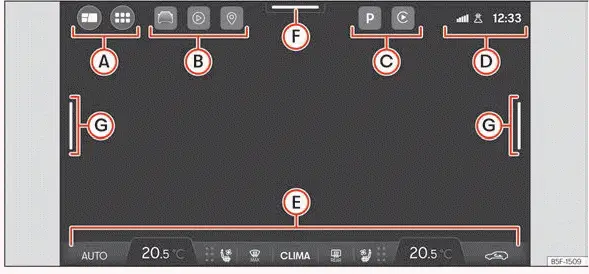
Fig. 11 Schematic representation: Overview of the
possible function buttons on the screen.
Top part of the screen
- Main menu display mode:
 : main menu configured with interactive widget views.
 : main menu configured in tile mode displaying primary functions of the Infotainment system.
- Shortcuts to frequently used infotainment functions, offering full customizability to add or remove specific application buttons.
- Active background functions that are not currently displayed in zone B.
- Status bar. An informational header bar displaying vital system operational status metrics, including the current clock time, cellular phone signal coverage, telephone battery charge level, Qi wireless smartphone charger status, and active user privacy mode.
Bottom part of the screen
- Climabar for quick climate control and temperature adjustments
Segments
- Swipe down from the top edge to open the control center and view system notifications.
- Change the visual layout or content presentation of active functions on the home screen. For example, within the Navigation menu, switch between the full map view and route guidance turn instructions; or within the Park Assist menu, toggle between the rear camera video feed and comprehensive maneuvering status graphics.
Initial configuration wizard
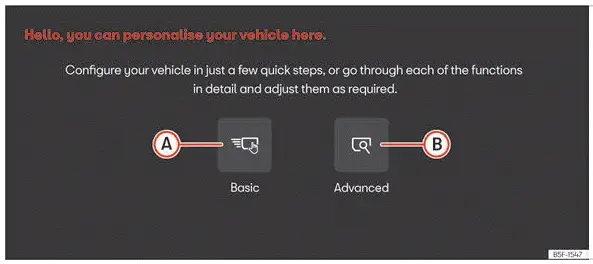
Fig. 12 Schematic representation: Initial
configuration wizard.
The initial configuration wizard is designed to guide you step-by-step through setting up your Infotainment system the first time you switch on your Seat Leon.
Whenever you power on the infotainment system, this initial setup screen will appear automatically ››› Fig. 12 if any essential configuration parameters remain unconfigured (marked with symbol " ") or if the "Don't show again" function button has not yet been activated.
Available configuration options include:
- Tap this option to access the core configuration menu of the infotainment system, allowing you to set up navigation destinations to home, mobile phone connections, preferred radio stations, and more.
- Tap to open the infotainment system's advanced configuration menu for deeper personalization.
Don't show again Disables the startup wizard and removes the possibility of altering basic settings through the quick setup prompt. If you wish to perform initial setup tasks later, you will need to access them manually via the main Settings menu.
End Once one or more configuration settings have been successfully applied, press this option to finalize the setup routine and transition directly to the main infotainment menu.
Assistance systems and vehicle settings
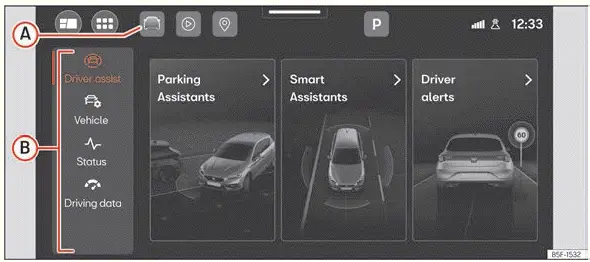
Fig. 13 Schematic representation: Assist systems
and vehicle settings
Press  ››› Fig. 13 A , or
 Vehicle within the main infotainment menu to open the comprehensive assistants and vehicle settings hub. Clicking on any of the category menus located in the left-hand panel B opens the corresponding settings menu or active assist systems interface on the display screen.
The total number of available assistance systems and configurable settings varies depending on the specific vehicle version and regional market specifications of your Seat Leon.
 Assistants
- Parking
- Automatic parking brake activation settings
- Park assist maneuvering features
- Rear Cross Traffic Alert system
- Smart Assistants
- Activate or deactivate ESC, electronic stabilization systems, and brake assist
- Switch the Start-Stop fuel-saving system on or off
- Speed limiter configuration
- Adaptive cruise control (ACC)
- Lane Assist lane-keeping support
- Front Assist emergency braking assistance system
- Travel Assist driving assistant
- Emergency Assist emergency intervention
- Predictive speed adjustment
- Auto Hold brake function
- Eco Assist efficiency prompts
- Driver alerts
- Drowsiness monitor
- Speed warning alerts
- Side Assist blind spot monitoring
- Door opening warning system
- Trailer detection settings
- Traffic hazard alert notifications
- Driver attention monitor
 Vehicle
- Instrument cluster display options
- Exterior and interior lighting
- Mirror adjustments and folding
- Central locking and closing behavior
- Exterior lights configuration
- Power windows operation
- Tyre pressure monitoring
- Windscreen wipers and washer operation
- Electric drive management (for PHEV hybrid vehicle variants)
- Seat adjustments and heating
Vehicle information
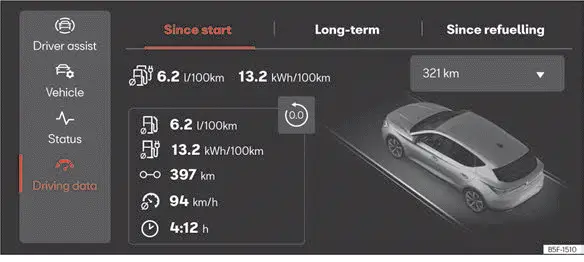
Fig. 14 Schematic representation: Vehicle
information and status.
Pressing  Vehicle in the main menu opens the dedicated Vehicle menu containing the following submenus:
 Vehicle assistants
 Vehicle settings
 Vehicle status
Important notifications regarding active system faults, mechanical incidents, tyre pressure storage calibration, or countdown reminders for your next scheduled inspection service are clearly displayed here.
 Driving data
Presents trip statistics such as average fuel consumption, average travel speed, cumulative distance traveled, elapsed trip duration, and estimated driving range. The trip computer features 3 distinct memory banks: "Since start", "Long-term", and "Since refuelling".
The "Since start" and "Long-term" memory banks can be reset manually at any time by pressing button  .
Departure menu
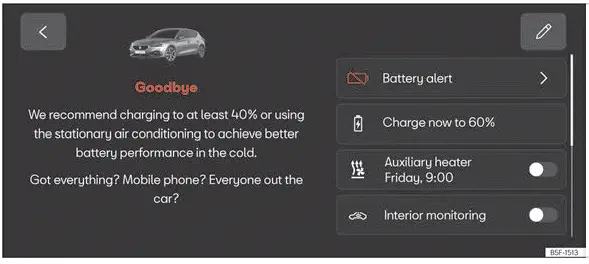
Fig. 15 Schematic representation: departure
menu.
The departure menu allows you to conveniently configure and verify specific vehicle functions before leaving your Seat Leon. This menu pops up automatically on the infotainment display whenever you switch off the vehicle ignition.
The exact options shown depend on your car's equipment level and may only be available under certain operating conditions. Typical adjustable functions include:
- High-voltage battery charging schedules (hybrid models)
- Stationary auxiliary air conditioning or heating
- Interior security monitoring system
- Saving parking process preferences
Hide
When you exit the vehicle, the departure menu disappears automatically. Depending on fitted equipment, it also hides itself after a set period of time.
- Press
 to manually dismiss and hide the departure menu.
Adjust
You can customize the arrangement order of the displayed menu items to suit your workflow.
- Press
 .
- Drag and sort the input entries according to your personal preferences.
- Press
 again to lock in your changes.
 Instrument cluster operation
Introduction
With the vehicle ignition switched on, you can easily access and read the various operational functions of the display by scrolling smoothly through the onboard menus.
In vehicles equip ...
 Safety
...
See also:
Rear interior and reading lights*
Fig. 79 Detail of the roof:
Rear interior light and
reading lights
The switch fig. 79 C is used to select the following positions:
Interior light switched off 0
In switch position f ...
